How to Recover Your Forgotten Gmail Password: How to Find Out Your Email Password | How to Retrieve Your Forgotten Gmail Password | How to Recover Email Password | How to Find Out Email Password Most people use Gmail (Google account) nowadays, but sometimes we forget its password. When we need to log in to Gmail on another device, we face a lot of problems.
Hello friends, welcome to our blog. Today we are going to talk about how we can recover our Gmail password (How to Recover Your Forgotten Gmail Password). What are the different ways to find out your Gmail password? How can you keep your Gmail safe? We will also discuss some special tips related to this.
In this post, we will learn in detail about all the problems related to how to recover Gmail password without phone number and recovery email, such as how to recover Gmail password, how do I retrieve a forgotten Gmail password, how to recover your forgotten Gmail password on Android, Gmail password forgot on mobile, so that you have no trouble recovering your Gmail (Google account) password. And I hope you will definitely like today’s post. So, let’s find out how to find out your Gmail password? An easy way.
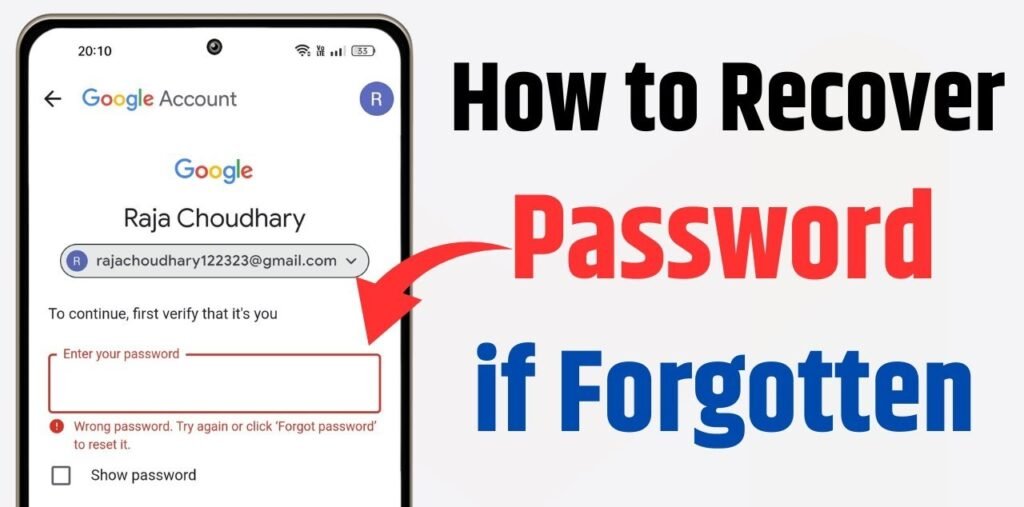
What is a password?
A password is a secret word that is used to identify a person when accessing any system or account. Password is an English word, which is also called a code word, permission word, or authorization word.
Generally, the length of any password is between 8 to 16 characters, and any password can include numbers (123), letters (ABC), and special characters (@#$&*).
How to Find Out Gmail Password
Usually, there are two situations in which we can retrieve a password. If you have logged into your Gmail account on your smartphone or computer and have forgotten the password, you can easily recover it.
But if you haven’t logged into that Gmail ID on any device, then there are some steps that you can follow to recover your password.
The most important thing to know an email’s password is that the email should be yours, and you should have information about the data you submitted while creating the email. This makes it much easier to recover the password.
- 1. The last password you remember
- 2. The mobile number you provided when creating the account (if you forgot it, it’s okay; when resetting the password, the last two digits are shown, which makes it easy to figure out.)
- 3. Recovery email ID (which you gave while creating the account)
- 4. Email should be logged in on a mobile device; if it’s not logged in, that’s okay too.
How to Recover Your Forgotten Gmail Password 2026
Whenever we want to reset our Gmail password, in this situation Google does our verification, and only after authentication can we do things related to security.
If you are already logged into your Gmail, then your password reset is completed in just a few steps.
To recover the password in this situation, follow these steps –
- 1. Go to the ‘Settings’ option on your smartphone; this option is available on all companies’ Android smartphones.
- 2. Click on the ‘Google’ account option.
- 3. After this, go to ‘Manage Your Google Accounts’.
- 4. Here, information related to your Gmail account will appear, as shown in the image below.
- 5. Then click on ‘Personal Info’, see in the image below.
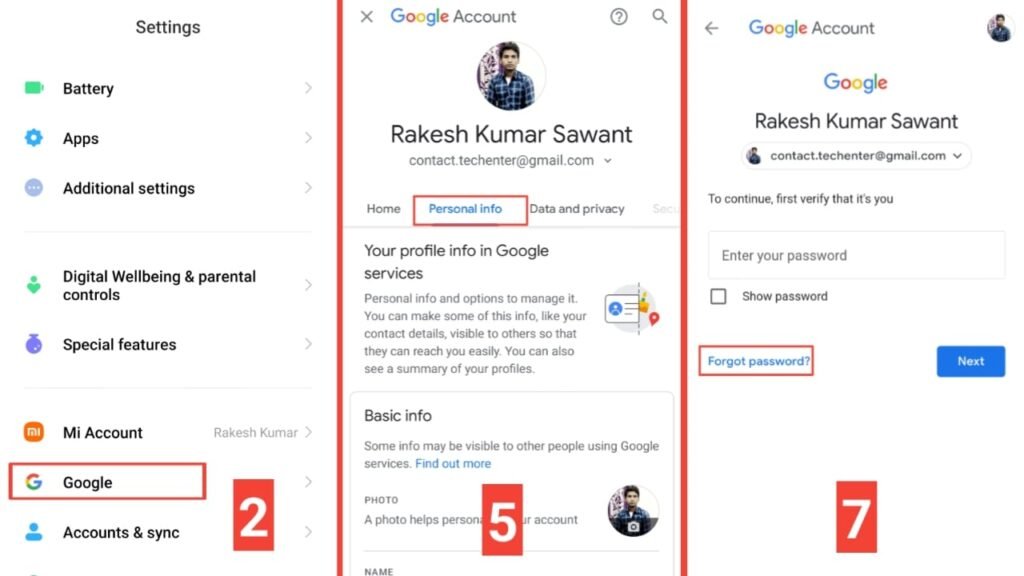
6. After opening ‘Personal Info’, your personal information will be displayed clearly. If you scroll down here, a section for the password will appear, click on it.
7. Here you will find a box to enter your password (see number 7 in the image above). Along with this, the ‘Forgot Password’ option will appear, click on ‘Forgot Password’.
8. After clicking here, many options will appear on your phone. Some options may appear differently on your phone –
- Confirm Your Screen Lock
- Enter Your Password
- Get a Verification Code at xxx……@gmail.com
- Try Another Way to Sign in
A. If you are seeing all four of these options, you can verify the ownership of your email ID using your phone’s screen lock (Pattern, Password, Fingerprint) with the help of ‘Confirm Your Screen Lock.’
After clicking on ‘Confirm Your Screen Lock,’ you will get the option to enter your phone’s password. After entering it, you will stay on the Account Recovery page. Here, after clicking on the ‘Tap Yes on Your Phone or Tablet’ option, you will be taken to the page where you can reset your password.
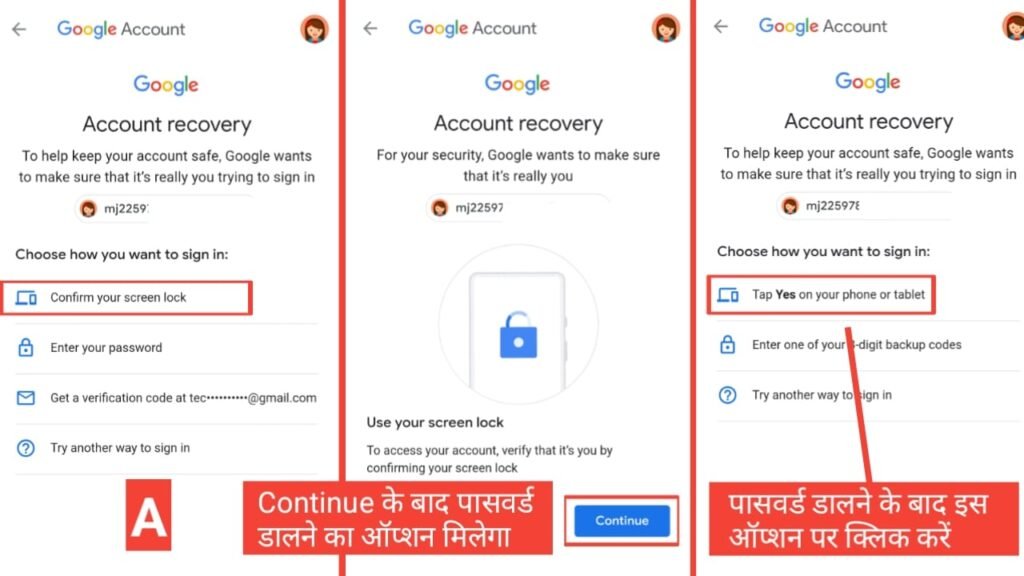
Here you can enter any other password of your choice that you can easily remember, and after that, you can use this password to log in to your Gmail anywhere.
B. Here, you can also easily reset your Gmail password using ‘Get a Verification Code at xxx……@gmail.com,’ because if you have logged into this Gmail on your phone (or any phone), an OTP is sent to your email, which can be used to verify the ownership of that email.
After entering this OTP, on the next page, you get the option to enter a new password, where you can enter any new password that is easy to remember and then click OK.
After this, you can go to the Gmail login page and log in using this new password.
How to Recover Your Forgotten Logged Out Gmail Password
If you haven’t logged into Gmail on your phone, you should definitely have the information related to that email, only then can you complete the verification process. You should have at least one of the following:
- – You should have the mobile number linked to your Gmail
- – You should have the recovery email
- – You should know information about when the Gmail was created
Even if that email is logged in on another device, it can still be verified by sending a notification to the logged-in device.
To find out the password of a Logged Out Email ID, follow the steps given below:
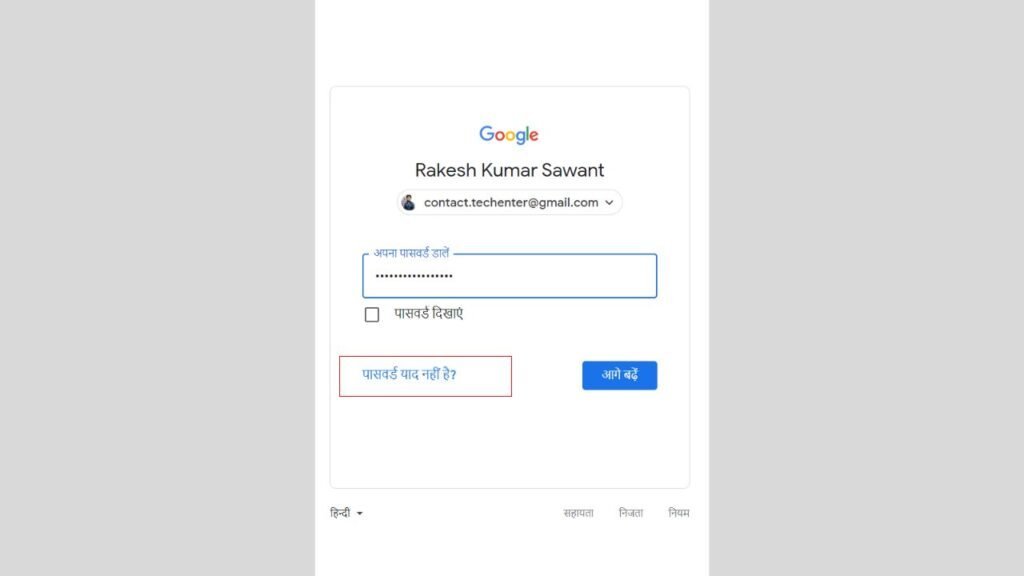
1. Open any browser on your smartphone or computer, then search for Gmail Login and go to the Gmail login page.
2. Enter the email whose password you want to recover, then click on ‘Continue’.
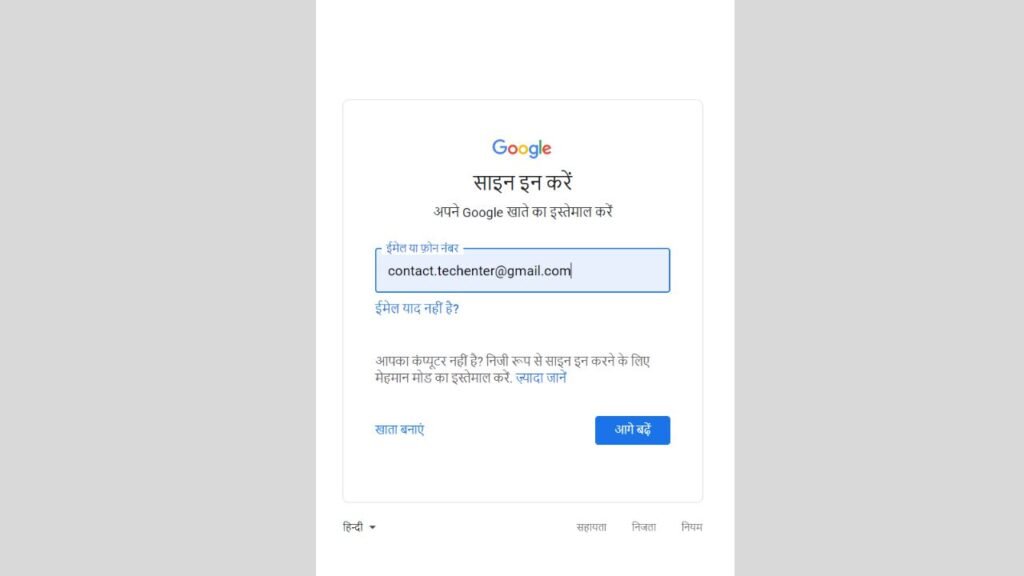
3. After this, click on the ‘Forget Password’ button below, and now you will see some options here one by one.
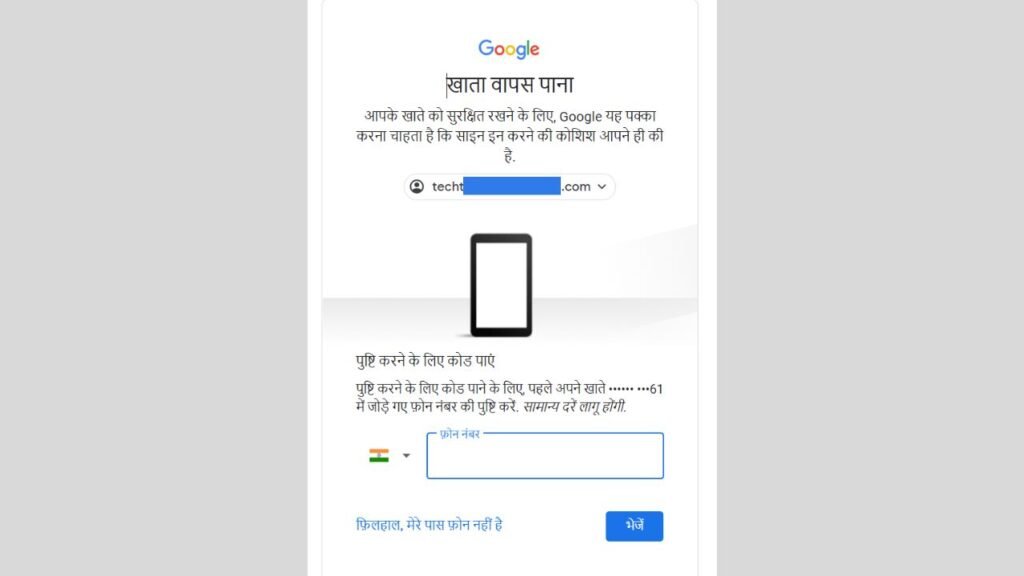
4. If Google shows the mobile number option, it sends an OTP to that number, and after entering it, you can easily reset the password on the next page.
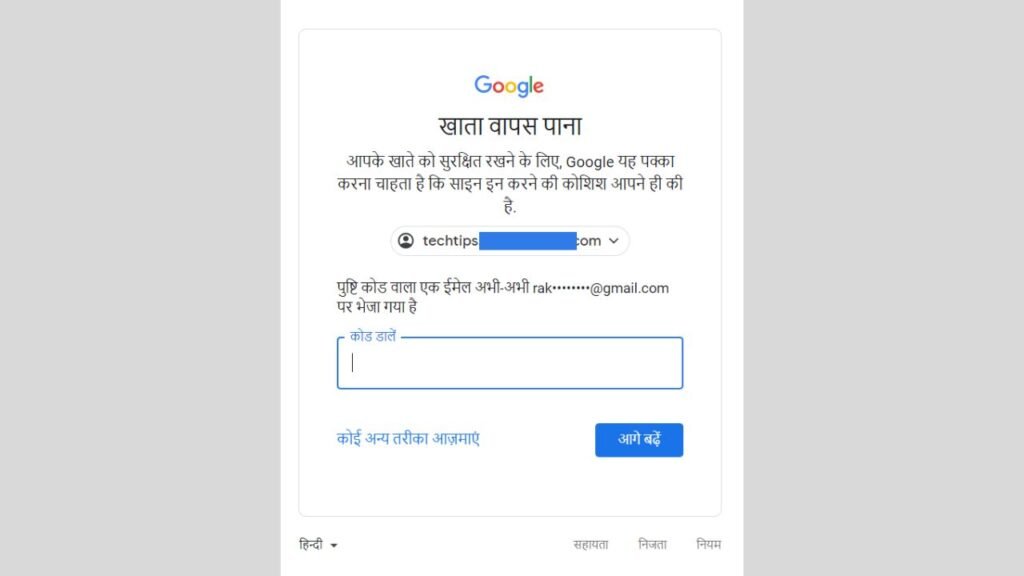
5. If it shows an email, an OTP is sent to that email, which you can enter to easily verify yourself and then reset the password.
6. Also, if you usually use that email on more than one device, Google gives an option to verify via Bluetooth, where you can verify by connecting with your other device in which you’re already logged in.
7. If you are using Gmail on more than one device, it gives you an option to click ‘Yes’ or a random number through a notification. A notification is sent from the device where you are trying to reset the password, and if that email is already logged in on that device, it asks you to click a number there.
Information about which number to click is provided on your device. Once you click the correct number, verification is completed and you can reset the password in the next step.
Important Gmail Tips and Tricks
Google keeps track of every little thing connected to your device, and in the past few years, there have been major changes in security. Here are some tips to keep in mind when figuring out your email password:
- Use familiar places and devices to recover your password; if possible, use a computer, phone, or tablet that you often sign in from.
Use the same browser that you usually use (like Chrome or Safari).
- If possible, choose a place where you normally sign in, such as your home or office.
- Try to answer security questions correctly—details matter, so don’t make any mistakes while writing, and also pay attention to using uppercase and lowercase letters in English.
- If you are asked to enter your previous password, enter the most recent password you remember. If you have forgotten the recent one, then enter the password before that. If you have changed your password multiple times before, then make your best guess.
Also Read📖🔥👍
What is GPS And how does it work?
Conclusion
So friends, in today’s article we tried to give you complete information about how to find out your email ID password (Gmail id Ka Password Kaise Pata Kare), how to recover Gmail password, how to recover your forgotten Gmail password in Hindi, how to see Gmail password, how to find out Gmail password.
Please let us know in the comment box below how you liked this article. If you have any questions or suggestions related to this, don’t forget to write them as well. Also, don’t forget to share this article with your friends.